Mac — direct download
Signed with Developer ID and notarized by Apple
- Every feature, including full History for files copied in Finder
- Menu bar, quick panel ⌘⇧V, start at login
- Drag in, drag out, share menu
No account to create — just one password.
FaveShare is in final testing. Downloads open at launch.
Signed with Developer ID and notarized by Apple
Runs in Apple's App Sandbox, updates through the App Store
App plus Share Extension
Windows and Android are planned; the first release is for Mac and iPhone.
Both are FaveShare, with the same library and the same sync. The difference is how much of your Mac the App Store's sandbox lets History see.
| Direct download | Mac App Store | |
|---|---|---|
| Favorites, collections, tags, search | Yes | Yes |
| Sync with your iPhone and other Macs | Yes | Yes |
| Quick panel, menu bar, start at login | Yes | Yes |
| History of copied text, links and images | Yes | Yes |
| History of files copied in Finder | Yes — a reference you can star later | File name only |
| Star a Finder file straight from History | Yes | Drag it in or pick it instead |
| Runs in Apple's App Sandbox | No — notarized by Apple | Yes |
The App Store build can't read a file copied in Finder later on, so History records its name. Drag the file onto FaveShare or use Add files to save it in full.
Open Devices and choose Create your sync group. Pick a group password — the strength meter helps — and you're done with the Mac.
Open FaveShare on the iPhone and tap Find my Mac. Pick the Mac whose code matches the one on its Devices screen, then type the password.
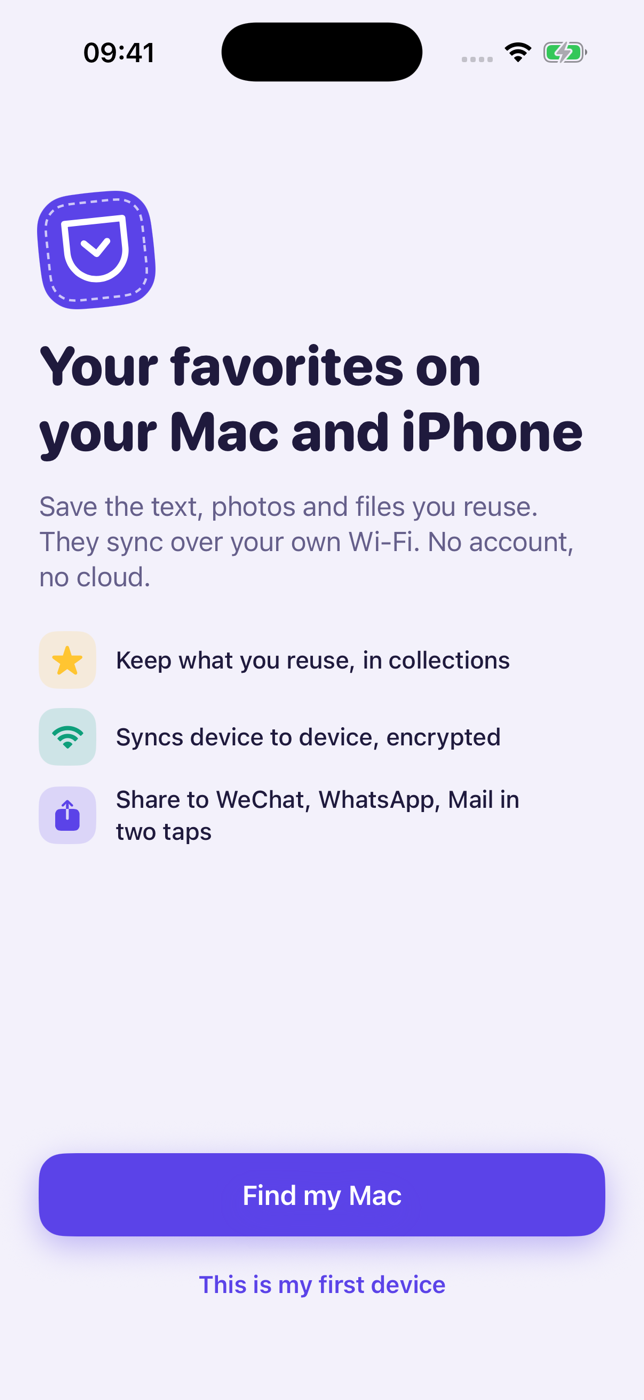
Your favorites start syncing straight away. Save a note on either device — it shows up on the other in about a second.
Have more devices? Join each one the same way, from any device already in the group. Can't see your Mac? You can type its address instead — here's how.
How sync works, what stays private and what to do when devices can't see each other — it's all in Support.